
You received a link from your doctor
That's normal: your practice is opening a secure area for your documents, your forms, your photos and your appointments. There is no account to create and no password to remember. Here is how to get in, in two minutes.
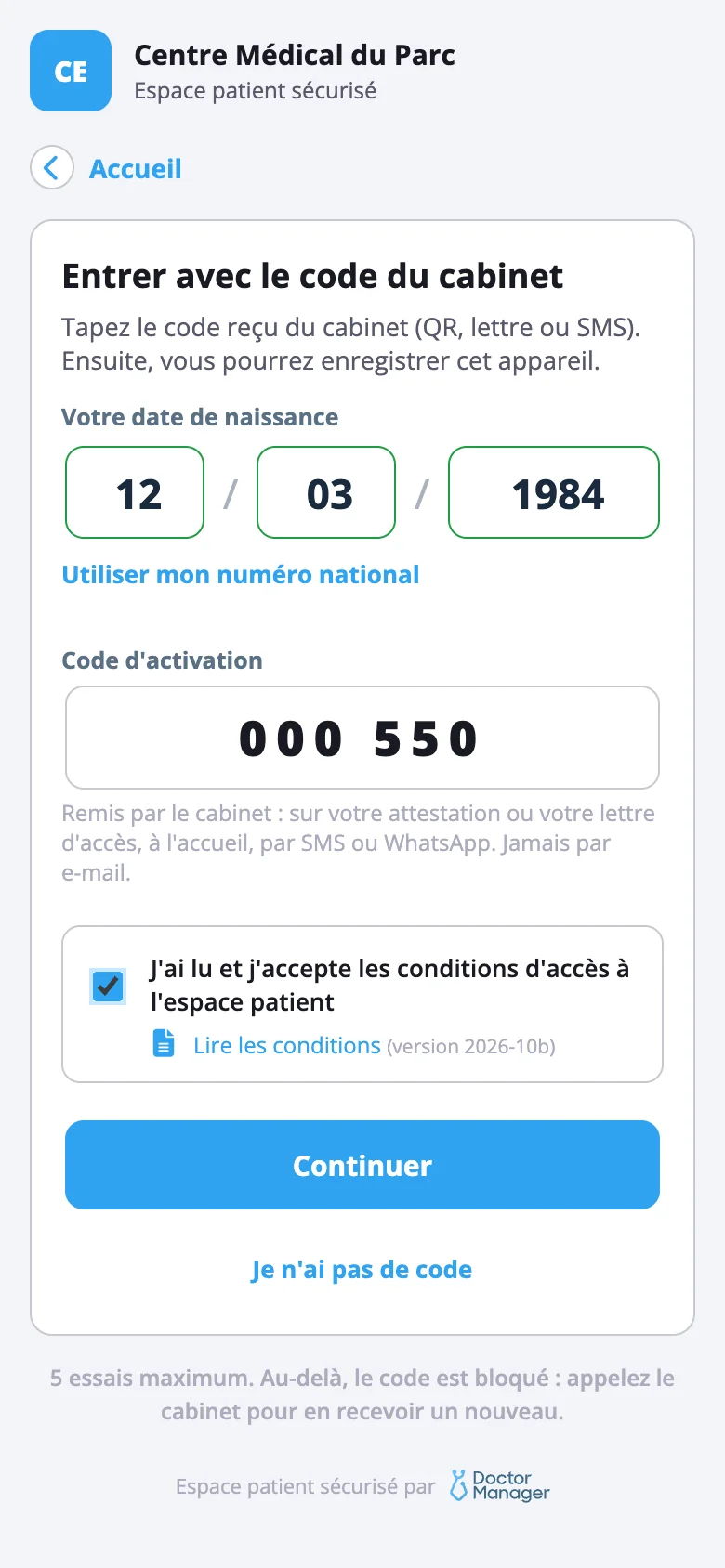
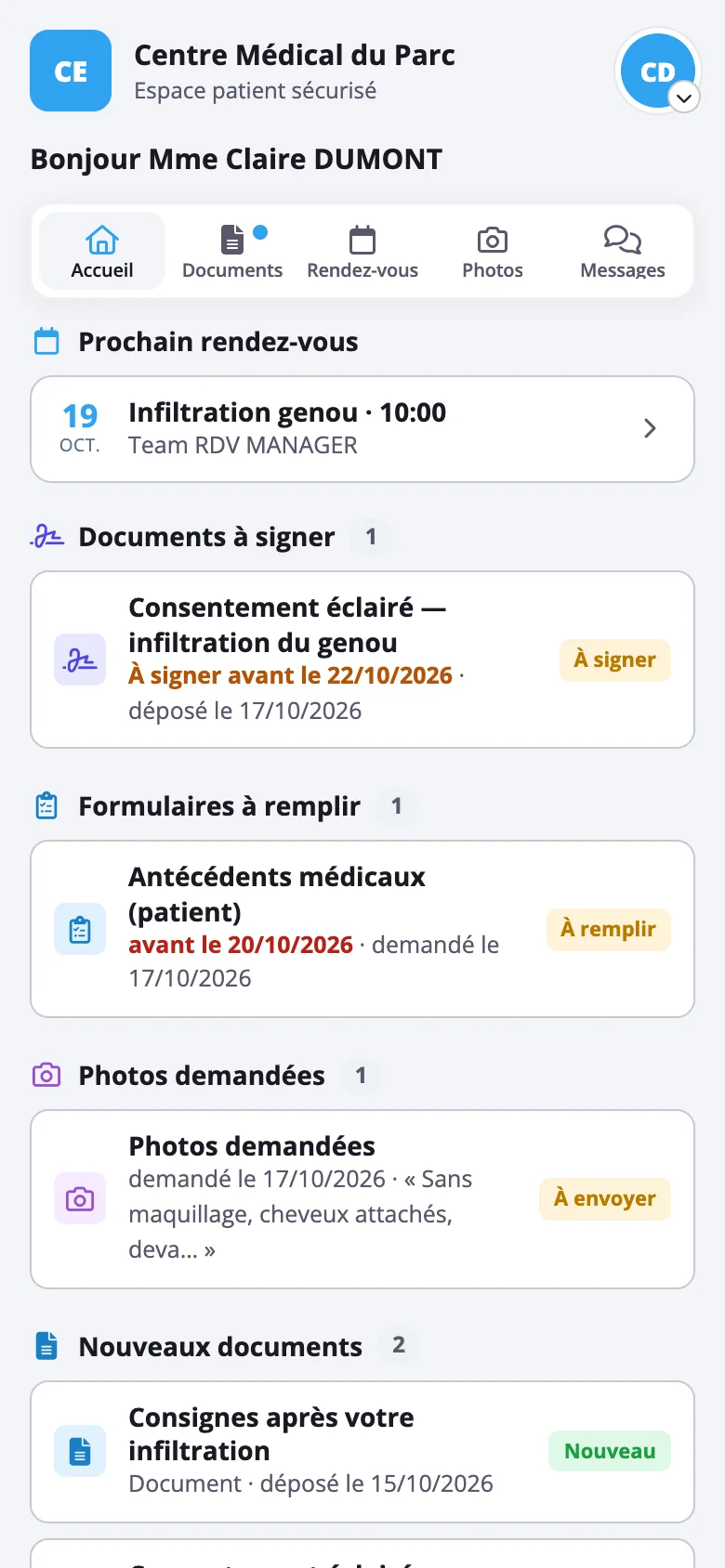
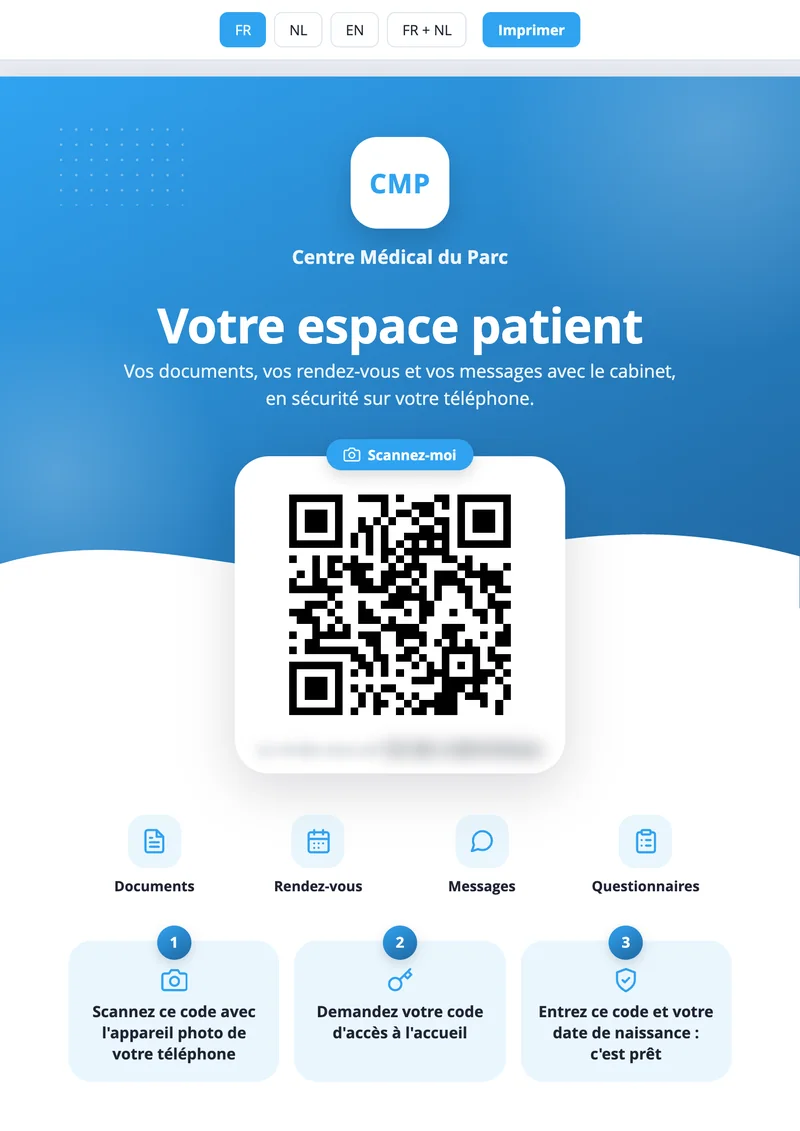
Getting in for the first time, in 3 steps
All you need is the link you received and a code your practice gives you. Nobody can get in with the link alone.
Open the link
In your practice's e-mail, tap « Open my patient area ». This link is personal and stays valid for 24 hours.
Did you scan the QR code on the practice's poster? You are already in the right place: the code is even filled in for you.
Type the practice code
Your practice gave it to you on your certificate or your access letter, at the front desk, by text message or by WhatsApp. Never by e-mail.
Add your date of birth (or your national number, if the practice asks for it), tick the conditions, then « Continue ».
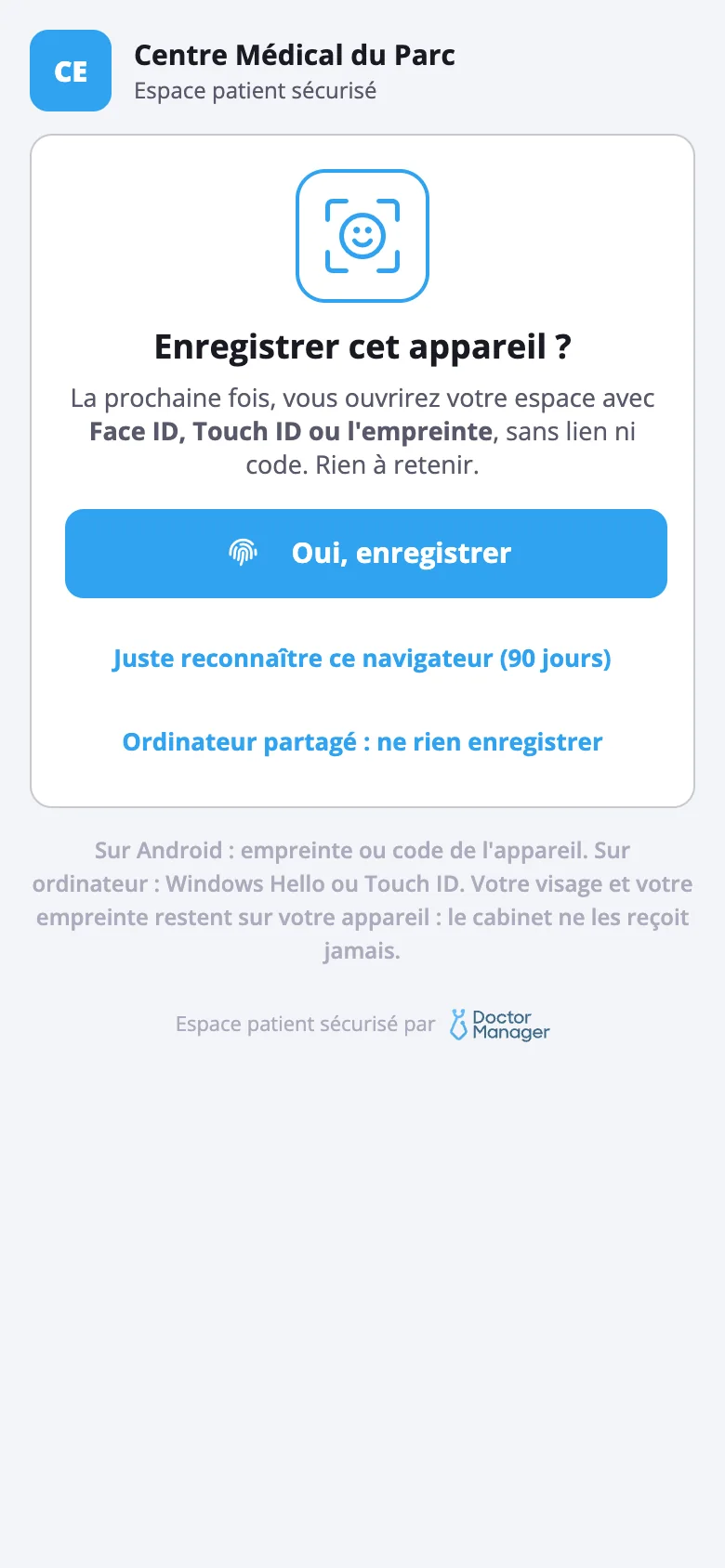
Register your phone
Tap « Yes, register »: next time, you get in with Face ID, Touch ID or your fingerprint, without typing anything.
Rather not? Choose « Just remember this browser (90 days) ». On a shared computer: « don't save anything ».
What you can do in your area
Only what your practice has chosen to offer you.
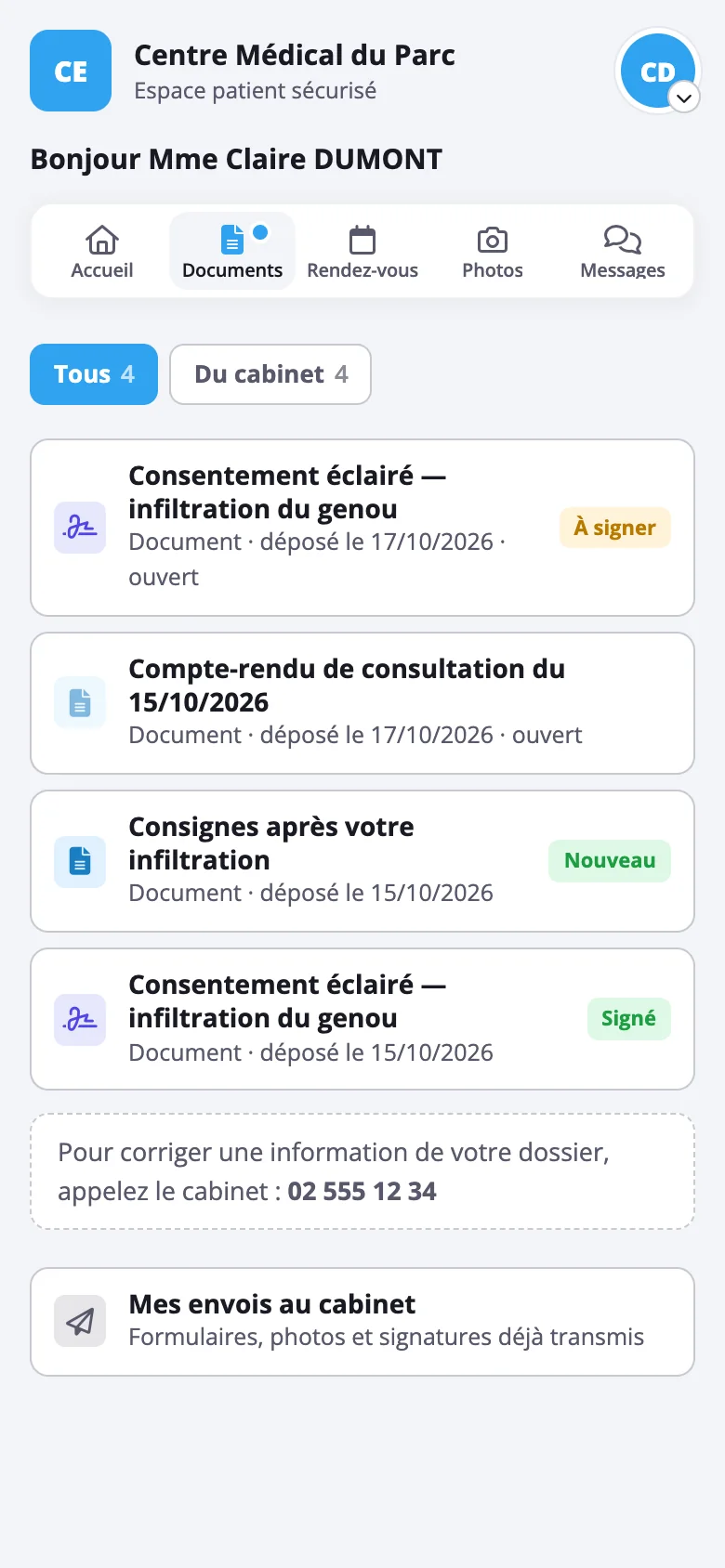
Read your documents
The documents the practice leaves for you, with its instructions. You can view them full screen, save them or share them.
Sign online
When a document is « to sign », you sign with your finger or by typing your name. The date and time are added, and you keep a signed copy.
Fill in a form
At home, at your own pace, before the appointment. Your draft is saved: you can stop and pick up again later.
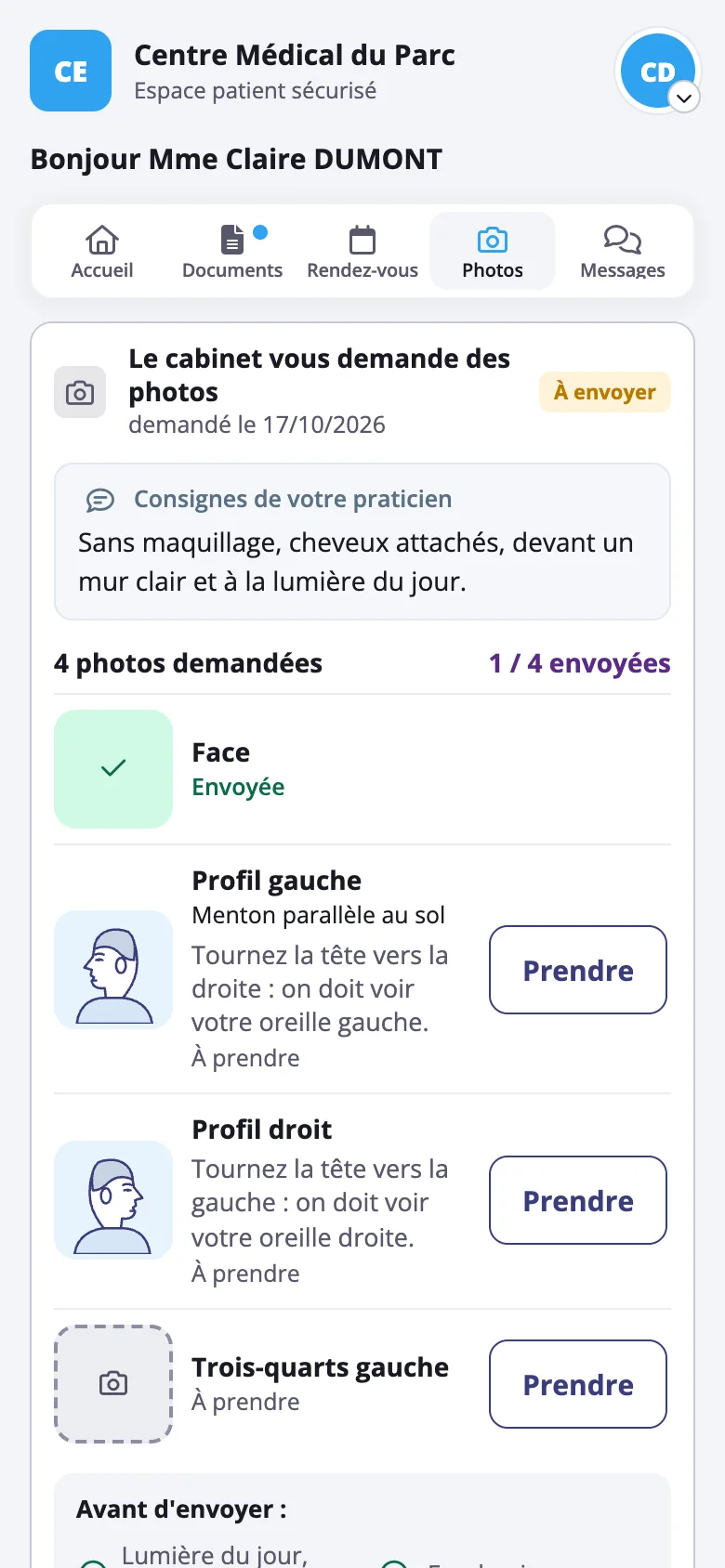
Send photos or a video
When the practice asks for them, each photo is explained with a pose example. The location is removed from your photos before they are sent.
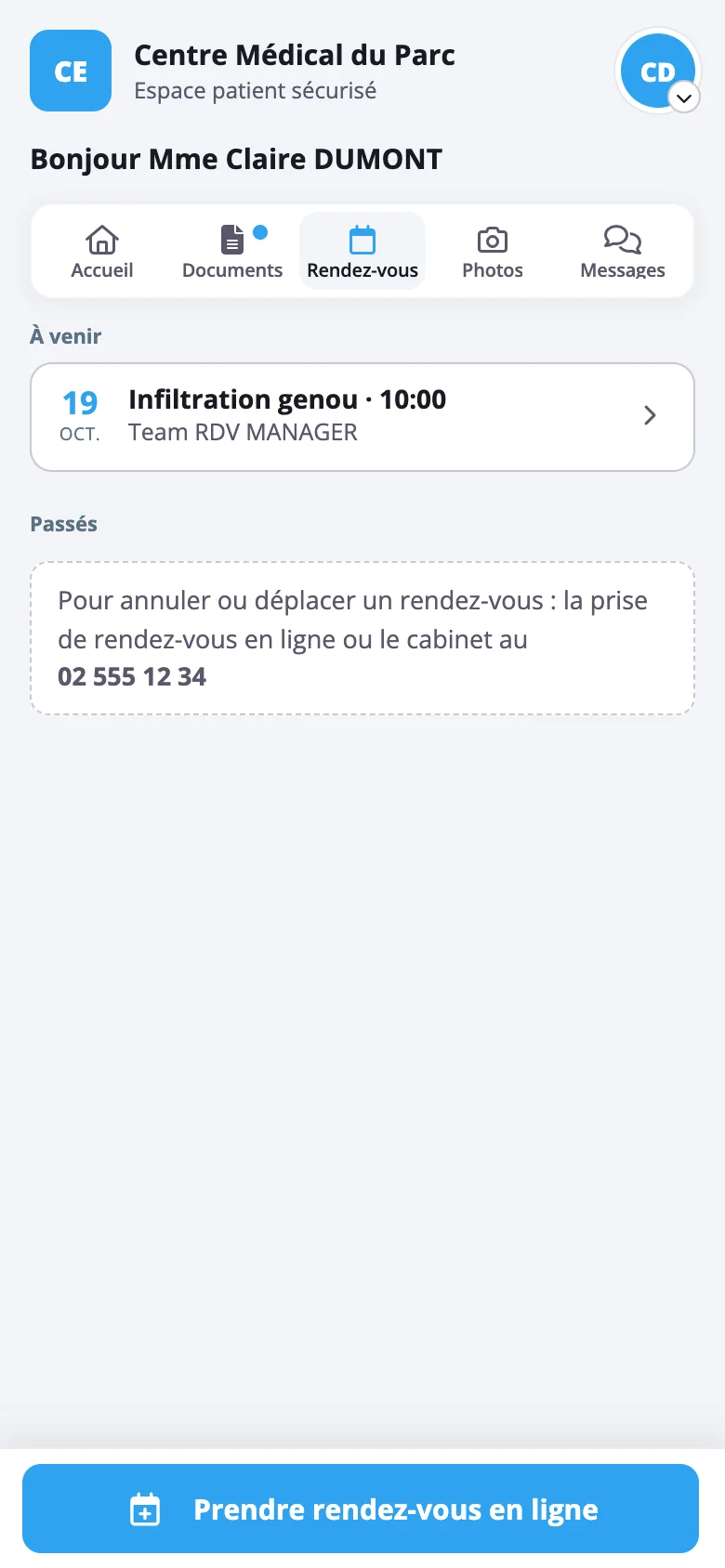
Find your appointments
The date, the time, the place, and a button to add the appointment to your calendar. Depending on your practice, you can also cancel it or book a new one.
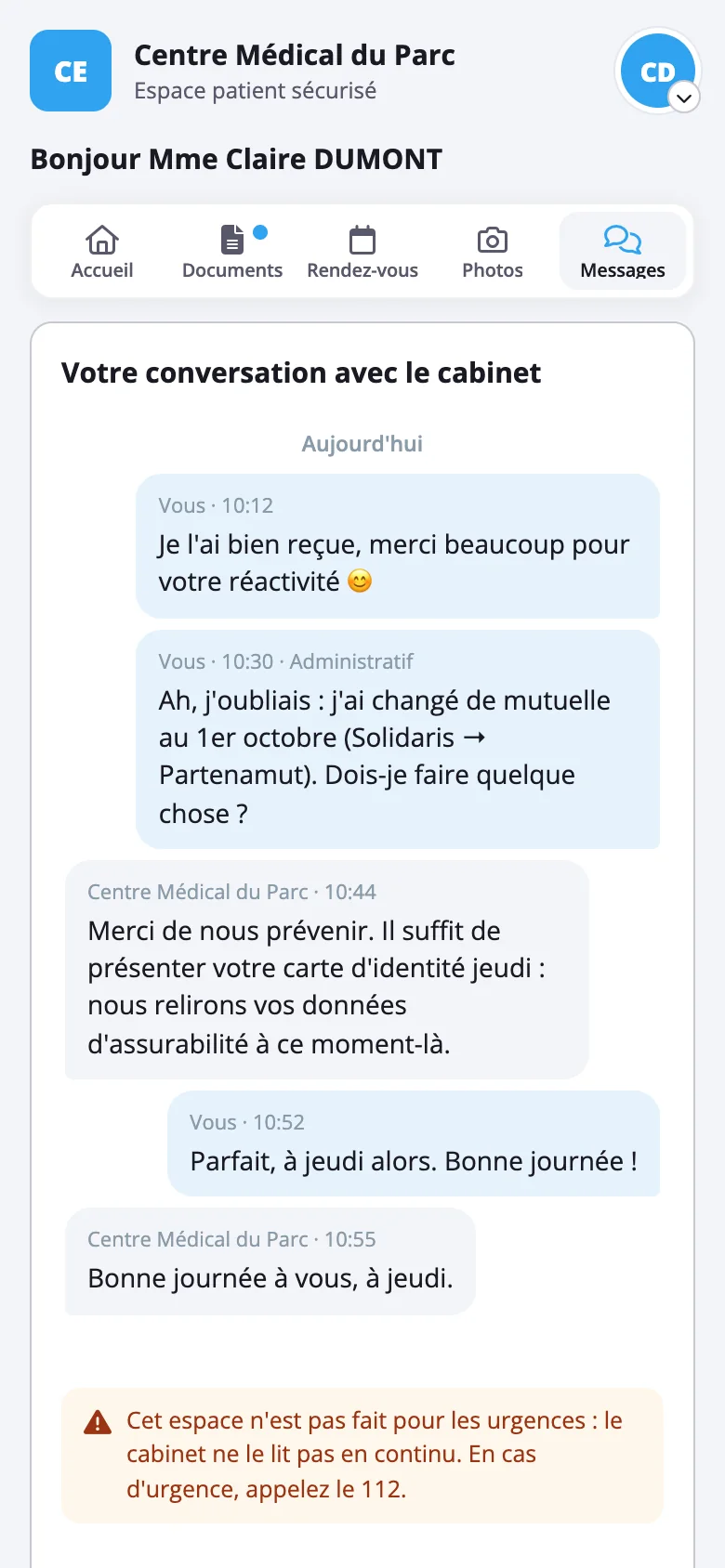
Write to the practice
For a simple question, if your practice has turned it on. The practice replies when it can: this is not an emergency service.
Your security, simply
Your health data is sensitive. Here is what protects it.
A code from the practice
The link received by e-mail is not enough: without the practice's code, nobody can get in. After 5 attempts, access is blocked and the practice gives you a new code.
Your face stays on your phone
Face ID, Touch ID and your fingerprint are handled by your phone. The practice never receives them.
You see who got in, and when
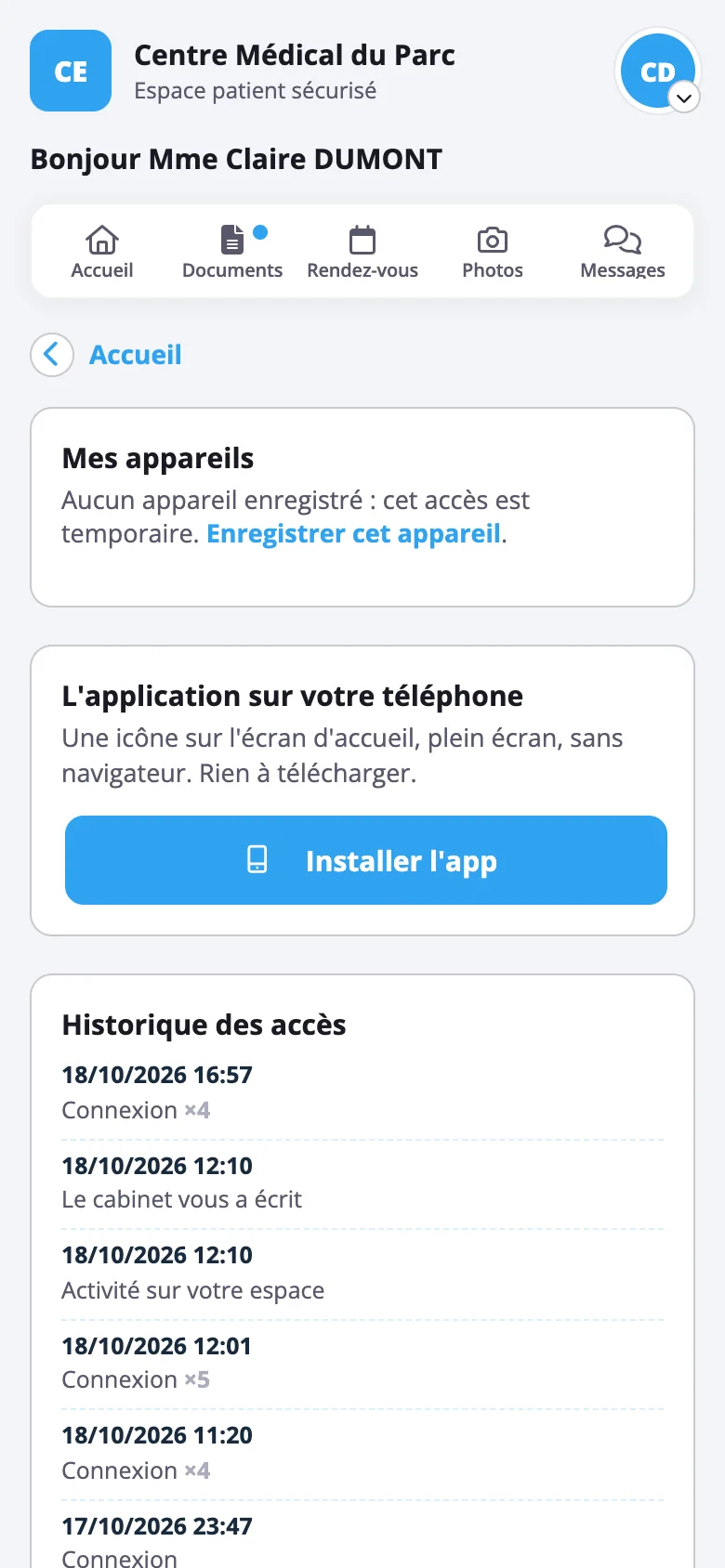
In the round menu with your initials, « Security and devices » shows the access history and your registered devices.
A « Log out all my devices » button
Phone lost or lent to someone? Tap it: all your devices are logged out. To get back in, you will need a new code from the practice.
Nothing changes in your record without a check
Your answers and corrections are sent to the practice as suggestions: the doctor reviews them before adding them.
No location in your photos
We remove the location from your photos before sending them to the practice.
A problem? The answers
Most situations are sorted out in a few seconds.
My link no longer works
For security, links expire after 24 hours. Your documents are still there: ask your practice for a new link.
If you have already registered your phone, you can still get in with Face ID.
I don't have a code, or it doesn't work
The code is given to you by the practice: on your certificate or your access letter, at the front desk, by text message or by WhatsApp. It is never sent to you by e-mail.
It can only be used once and you have 5 attempts. If the code is blocked, call your practice: it will give you a new one, and you will have 5 attempts again.
I don't have Face ID or my phone is old
On Android, use your fingerprint or the device's code. On a computer, use Windows Hello or Touch ID.
If none of this is possible, choose « Just remember this browser (90 days) ». You will confirm your date of birth (or your national number) each time you get in.
I changed phones or lost my phone
Face ID stays tied to the old phone: on the new one, you need a new code from the practice. Call the practice, then go through the three steps again.
Lost phone: nobody can get in without unlocking it. If you want to cut off access straight away, open your area from another device and tap « Log out all my devices », or call the practice.
I don't have a Belgian national number
On the sign-in screen, tap « I don't have a Belgian national number »: you will be asked for your date of birth instead.
Do I have to install an app?
No. Your area opens in your phone's browser. If you like, « Install the app », in « Security and devices », adds an icon to your home screen.
Can I correct my address, my phone number or my health insurance fund?
If your practice allows it, yes: « My details », then « Correct my details ». The practice checks before changing your record; nothing changes on its own. Otherwise, call the practice.
How do I cancel or move an appointment?
In « Appointments », according to your practice's rules. When cancelling is not possible in your area, call the practice: its number is shown in your area.
How do I delete my access?
In the Doctor Manager Patient app: « Settings », the practice, then « Delete my access to the patient area ». Without the app: ask your practice, or write to us at hello@doctormanager.be: we pass your request on to the practice.
Your medical record stays with your practice, which must keep it. All the details: Delete your access to the patient area.
Who is Doctor Manager?
Doctor Manager is the software your doctor uses. Your area belongs to your practice: for any question about your record, a document or a code, it is the practice you should call.
And in an emergency?
The patient area is not read around the clock. In an emergency, call 112.
Are you a doctor?
Find out how to offer the same area to your patients: documents, forms, signatures, photos and messages, without e-mail.